
The Info/Details for a chat channel can be accessed by selecting the Information icon  located at the top right of the chat window, or by selecting an actual channel or direct message and selecting the expand icon
  .
.
In these sections you can do the following:
- Add/Remove Users
- Change a Channel Name
- Delete a Channel
- Duplicate a Channel
- Download Files
- Attaching Files
- Manage Notifications
- Pin Messages
- Unpin Messages
- Restrict Messaging
- Star a Channel
- Remove a Channel from Starred
To Add or Remove a User, follow these steps:
- Log into Superpunch Chat.
- Select the Information icon to access the chat "Details".
- Select +Add member and search for the user you wish to add to the chat.
- Or, hover over a specific user and select the X to remove them from the chat.
If you remove someone who's in a room because of their job, they will automatically be re-added. To properly remove them, their job in their Superpunch profile must be changed.
For information on adding or removing users see this article.
To change a Channel Name, follow these steps:
- Log into Superpunch Chat.
- Select the Information icon to access the chat "Details".
- Select Edit.
- Type the new name in the underlined area right above the edit button
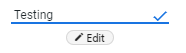 .
. - Select the Check Mark to the right of the new Chat Name to save your changes.
For information on renaming chats see this article.
To Delete a Channel, follow these steps:
- Log into Superpunch Chat.
- Hover over the room you want to delete and select Expand Menu .
- Select Delete.
- Select Submit.
This is only "Supervisors", "Chat Supervisors", and "Chat Admins" can delete rooms.
Automated rooms cannot be deleted, reach out to GSD if you need assistance with this.
To Duplicate a Channel, follow these steps:
- Log into Superpunch Chat.
- Hover over the room you want to delete and select Expand Menu .
- Select Duplicate.
- Enter a name for the duplicate room in the "Room Name" field.
- Select Submit.
This is only "Supervisors", "Chat Supervisors", and "Chat Admins" can delete rooms.
The duplication of large rooms may take some time for the request to be processed.
To Download or Upload Files, follow these steps:
- Log into Superpunch Chat.
- Select the Information icon to access the chat "Details".
- Select Files.
- Select a File to either preview or download it (depending on the file type).
- If you uploaded a file, select the Edit icon to rename the file.
To remove a file click the X on the top right corner of the file preview.
To Download or Upload Files, follow these steps:
- Log into Superpunch Chat.
- Select the Paperclip to the far right of the "Type a Message" field.
- Click in the the Attach File field.
- Search your saved files on your computer, and select the File you want to attach.
- Select Open.
- Select Add File.
- If you want to Edit the name of the file you shared, after you've already uploaded it then follow these steps:
- Select the Information icon to access the chat "Details".
- Select Files.
- Select a File to either preview or download it (depending on the file type).
- If you uploaded a file, select the Edit icon to rename the file.
- Select the Information icon
To remove a file click the X on the top right corner of the file preview.
To Manage Notifications, follow these steps:
- Log into Superpunch Chat.
- Select the Information icon to access the chat "Details".
- Select Options.
- Select your preferred notification setting for the channel (All Messages, Mentions Only, or Mute).
For more information on how notifications work see the Superpunch Chat Notifications article.
To Pin Messages, follow these steps:
- Log into Superpunch Chat.
- Hover over the message you want to pin and select Expand Menu .
- Select Pin Message.
The pinned message will be highlighted in your chat window, and can be found under "Pinned Messages" in the chat "Details" section.
To Unpin Messages, follow these steps:
- Log into Superpunch Chat.
- Select the Information icon to access the chat "Details".
- Select Pinned Messages.
- Hover over the message you'd like to unpin and select the X to delete the message from the pinned messages.
To Restrict Messaging, follow these steps:
- Log into Superpunch Chat.
- Select the Information icon to access the chat "Details".
- Select the Restrict Messaging toggle button to turn on or off.
This is only available to "Supervisors". Rooms with messaging restricted will not allow non-Supervisors to post messages. Non-supervisors can still start and add to threads.
There are two ways you can Star a Channel in Superpunch.
To Star a Channel, follow one of the two options shown below:
- Log into Superpunch Chat.
- Ensure you're on the channel that you'd like to star.
- Hover over the channel you want to star and select Expand Menu .
- Select Star Conversation.
OR,
- Log into Superpunch Chat.
- Ensure you're on the channel that you'd like to star.
- Select the Information icon to access the chat "Details".
- Select Star Conversation.
- You can now easily access your starred conversations in the Starred dropdown menu.
The channel(s) should automatically be removed from your Channels or Direct Messages dropdown menu(s) and now be visible under your Starred dropdown menu.
To Remove a Channel from being Starred, follow these steps:
- Log into Superpunch Chat.
- Ensure you're on the channel that you'd like remove from being to starred
- Select the Information icon to access the chat "Details".
- Select Remove from starred.
The channel(s) should automatically be removed from your Starred dropdown menu and added back to your Channels or Direct Messages menu(s).
Need more help? See the Superpunch Support Options article.