
Mobile App notifications can be set to remind you of your upcoming lunch/break times, as well as your upcoming shifts.
Please confirm via your Mobile Phone Settings Menu that you have your Superpunch App settings enabled to allow Notifications. The Superpunch Mobile App itself can be downloaded for free from the App Store or Play Store.
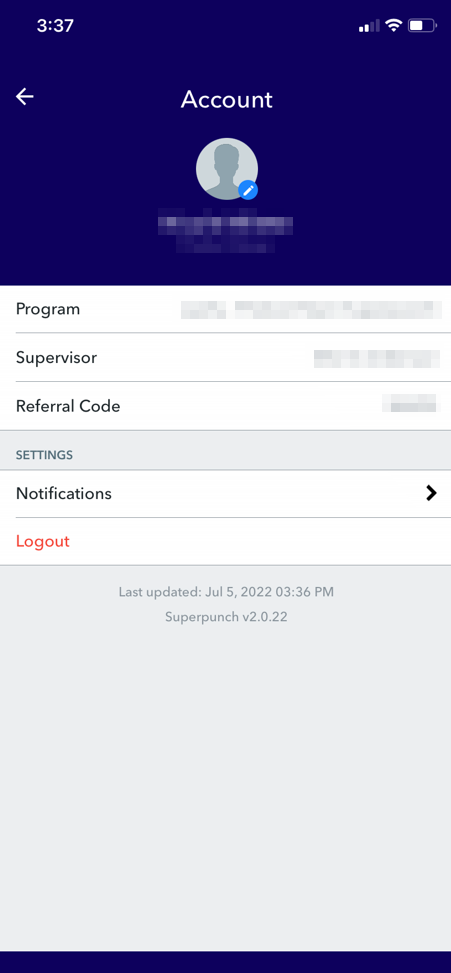
To access the Mobile App notifications settings, follow these steps:
- Log in to the Superpunch App on your mobile device.
- Select your Profile Photo.
- Select Notifications.
To turn notifications on or off, follow these steps:
- Log in to the Superpunch App on your mobile device.
- Select your Profile Photo.
- Select Notifications.
- Select the Toggle button to turn notifications on or off.
To turn on or off the Do Not Disturb feature, follow these steps:
- Log in to the Superpunch App on your mobile device.
- Select your Profile Photo.
- Select Notifications.
- Select the Toggle button to turn notifications on or off..
- If you're turning notifications on, then you will need to select a Time in the "From" and "To" fields.
To setup push notifications, follow these steps:
- Log in to the Superpunch App on your mobile device.
- Select your Profile Photo.
- Select Notifications.
- Select Push >.
- Select the Toggle button to turn notifications on or off Lunch/Break Reminders, Upcoming Shift Reminder, Shift Change Request, or select All Types to receive all types of notifications.
To setup break, lunch or next shift reminders, follow these steps:
- Log in to the Superpunch App on your mobile device.
- Select your Profile Photo.
- Select Notifications.
- Select the Lunch/Break Reminders > and/or Upcoming Shift Reminder >.
- Select your preferred reminder Time Period.
Need more help? See the Superpunch Support Options article.